
Flow Launcher: Your Windows Spotlight Alternative

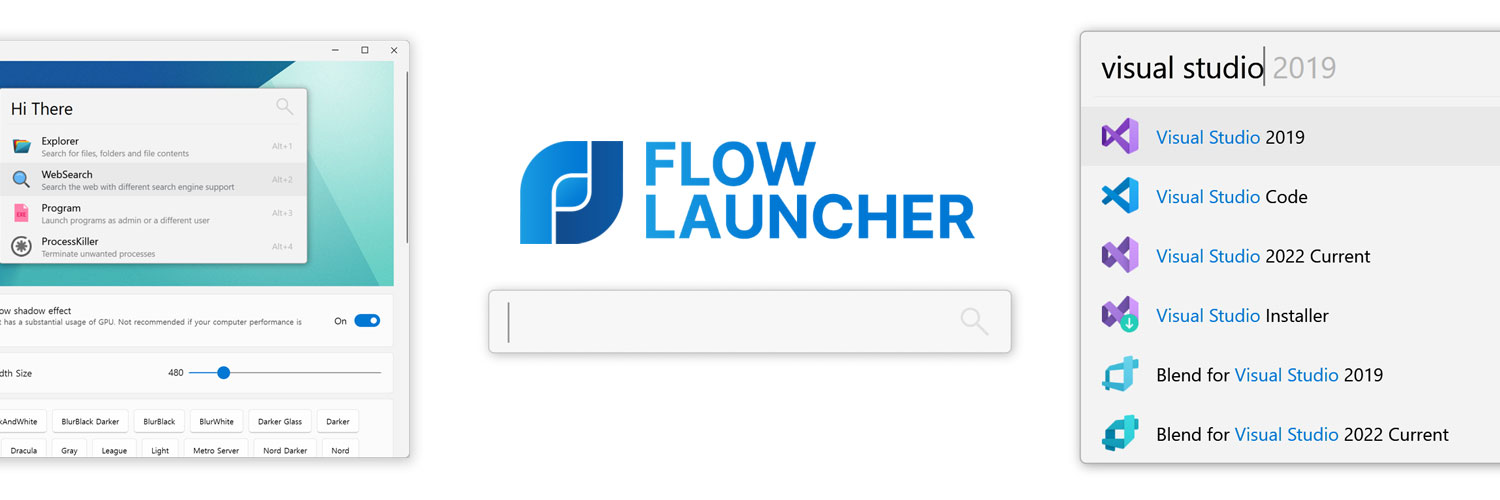
Flow Launcher is an open-source application that brings the convenience of macOS’s Spotlight search to Windows users. It allows you to quickly launch applications, search files, and perform various tasks with just a few keystrokes.

Introduction
In recent times I got frustrated with the default Windows search functionality. which often failed me when I needed to quickly find and launch applications or files. I am familiar with macOS’s Spotlight search, which provides a seamless and efficient way to access applications and files. Clean and simple, one hotkey to open dialog window centered on screen, start typing, hit enter to launch. I used Windows PowerToys on a previous setup. A bundle of tools for power users to tune and streamline their Windows experience for greater productivity. Tools like FancyZones for window management, Mouse utilities and PowerToys Run, a quick launcher similar to Spotlight. However, I wanted to explore alternatives and stumbled upon Flow Launcher, an open-source project that promises to bring the Spotlight experience to Windows.
In this review, I will share my experience with Flow Launcher, the setup process, a list of useful plugins, a sheet with shortcuts, and my overall impressions of the tool.
Installation and Setup
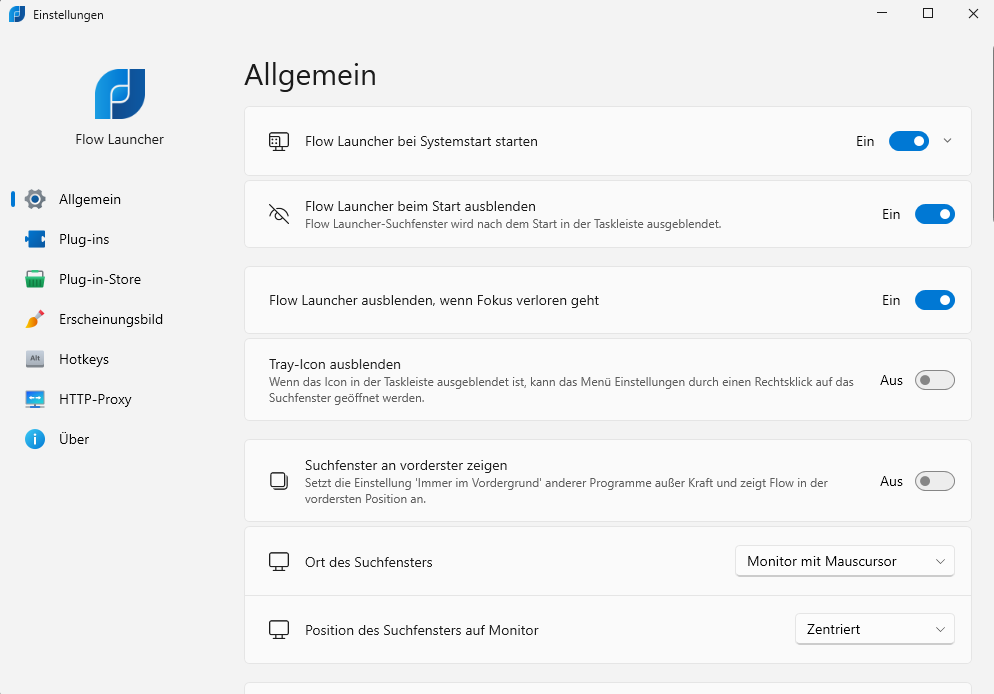
Installing Flow Launcher is straightforward. You can download the latest version from the official GitHub repository. The installation process is quick, and once installed, you can launch Flow Launcher using a customizable hotkey (default is Alt + Space). You can customize settings in the installation wizard or later in the settings menu. The GitHub page provides detailed instructions and documentation to help you get started.
Features and Plugins
Flow Launcher comes with a variety of built-in features and supports plugins that extend its functionality. Some built-in features include:
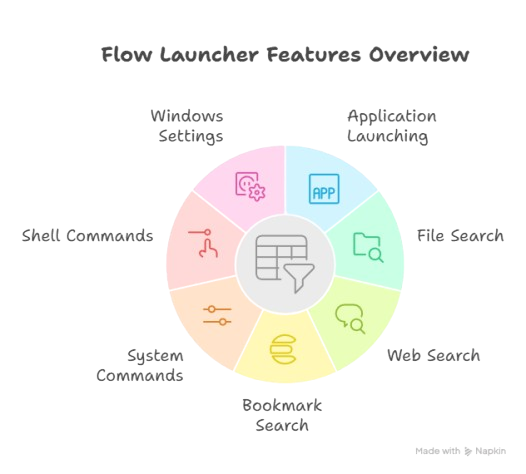
- Application Launching: Quickly launch applications by typing their names.
- File Search: Search for files and folders on your system.
- Web Search: Perform web searches directly from Flow Launcher.
- Bookmark Search: Access your browser bookmarks quickly. (e.g “b github” to search github bookmarks)
- System Commands: Execute system commands like shutdown, restart, etc.
- Shell Commands: Run shell commands directly from the launcher. (e.g “> ping google.com” to ping google)
- Windows Settings: Access Windows settings quickly. (e.g “s bluetooth” to open bluetooth settings)
Additionally, Flow Launcher has a vibrant community that develops plugins to enhance its capabilities. You can easily install plugins from the Flow Launcher settings menu. Some popular plugins include: Todos (a lightweight todo list), Todoist (integration with Todoist task manager), Timer (a simple countdown timer), ollama (interface for local LLMs via ollama), and many more.
A full list of plugins can be found on the Flow Launcher Plugins Page.
Shortcut Sheet
Here is a quick reference sheet for some useful Flow Launcher shortcuts:

Conclusion
Overall, Flow Launcher is a powerful and efficient tool that brings the convenience of macOS’s Spotlight search to Windows users. Its ease of use, customization options, and extensive plugin support make it a valuable addition to any Windows setup. Whether you’re looking to streamline your workflow or simply want a better way to access applications and files, Flow Launcher is definitely worth trying out.
Comments